Tutorial 7 of 9
Art backgrounds, moving loops and props
Beginner 7 min
Pick a painted, pixel-art or photographic background or a short moving loop, then place plants, tea, a sleeping cat and other props over it with the mouse or the keyboard.
Besides the nine generative backgrounds, Focus Room comes with a pack of pictures, short moving loops and props. They were made for Focus Room with AI image and video models and ship with the app, so they work offline once loaded and look the same in every copy of a room.
Choose an art background
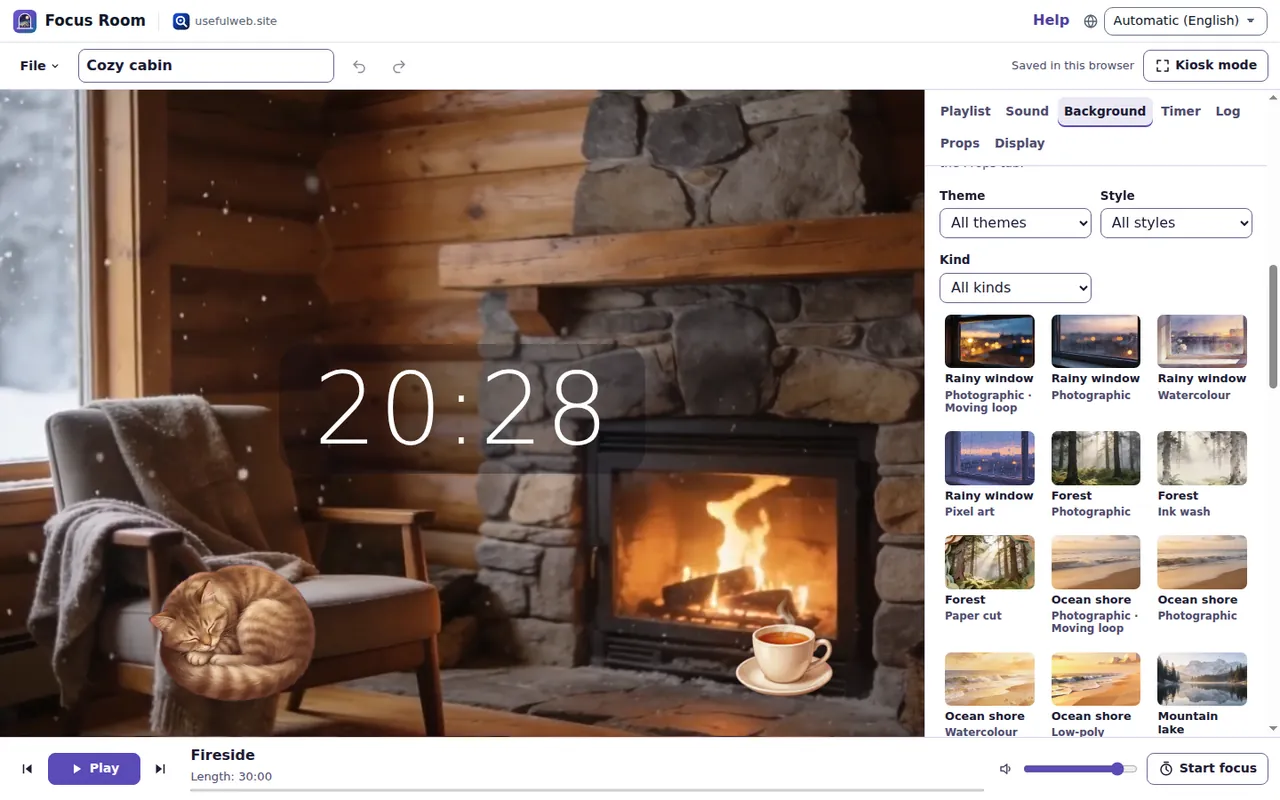
Open the Background tab and scroll to Art backgrounds. The gallery shows pictures of themes such as Rainy window, Forest, Ocean shore, Mountain lake, Night city, Space and nebula, Library study, Cabin fireplace, Zen garden, Desert dunes, Northern lights, Underwater, Candlelight and Snowfall, each in a few styles: Photographic, Watercolour, Low-poly, Pixel art, Ink wash, Retro synthwave and Paper cut.
Three filters above the gallery narrow it down:
- Theme shows one theme in all its styles,
- Style shows one style across all themes,
- Kind shows only Pictures or only Moving loops.
Click a thumbnail, or move through the gallery with the arrow keys, to show it on the stage. The key G steps to the next art background while one is shown. To go back to a drawn background, click one of the Generative backgrounds at the top of the tab. Seed and Colours only change the generative backgrounds.
Moving loops
Thumbnails marked Moving loop are short muted videos that repeat without a visible jump: rain running down a window, a crackling fireplace, waves on a beach, clouds over a mountain lake, northern lights, light under water, candle flames and falling snow.
- Speed in the same tab also changes how fast a loop plays; at Still image it stops and shows its first frame.
- A loop pauses while the tab is in the background.
- If your system asks for reduced motion, a loop shows its still picture instead and the video is not even downloaded.
Place props
Open the Props tab (key 6). The Prop library at the bottom lists plants, a cup of tea, a candle, a sleeping cat, a desk lamp, books, headphones, a paper lantern and an hourglass, each Illustrated, Low-poly or as Pixel art. Filter it with Object and Style, then press a prop to add it to the stage.
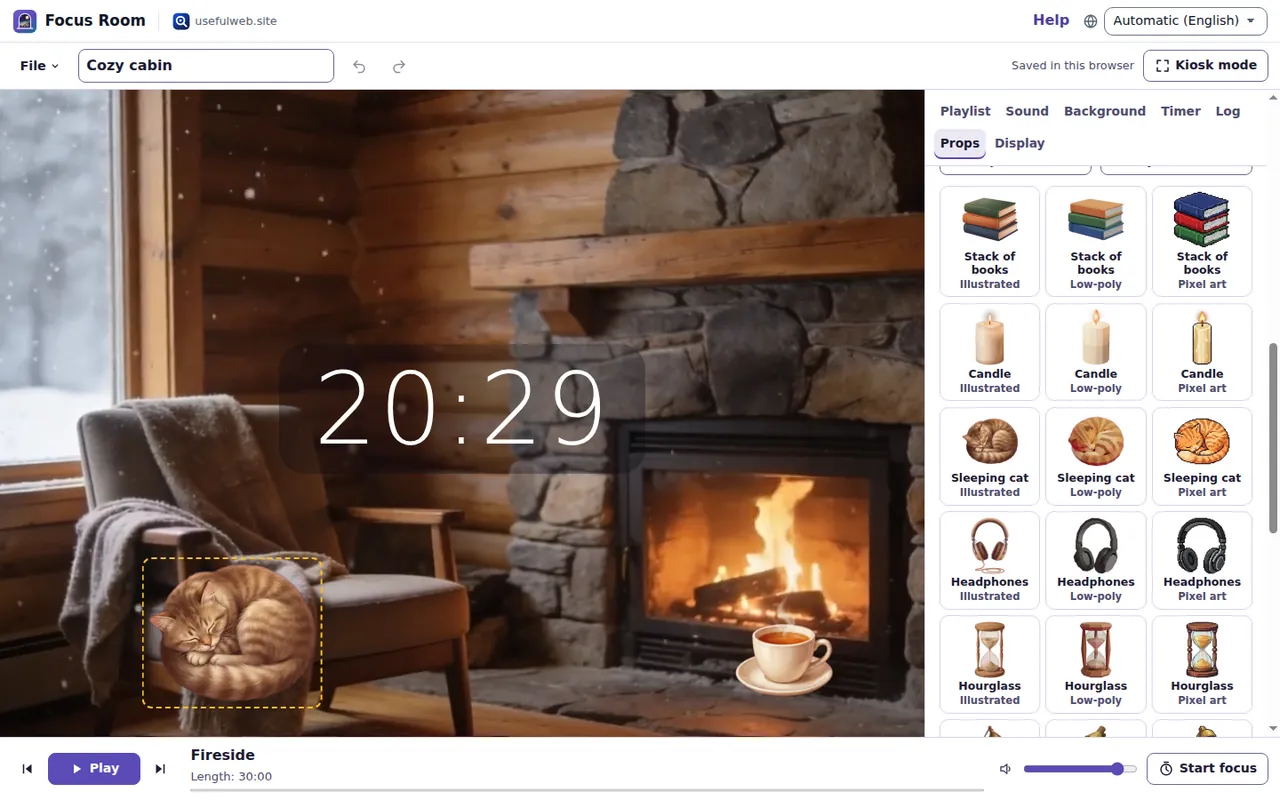
While the Props tab is open, you can work directly on the stage:
- drag a prop with the mouse or a finger,
- turn the mouse wheel over a prop to make it bigger or smaller,
- click a prop to select it.
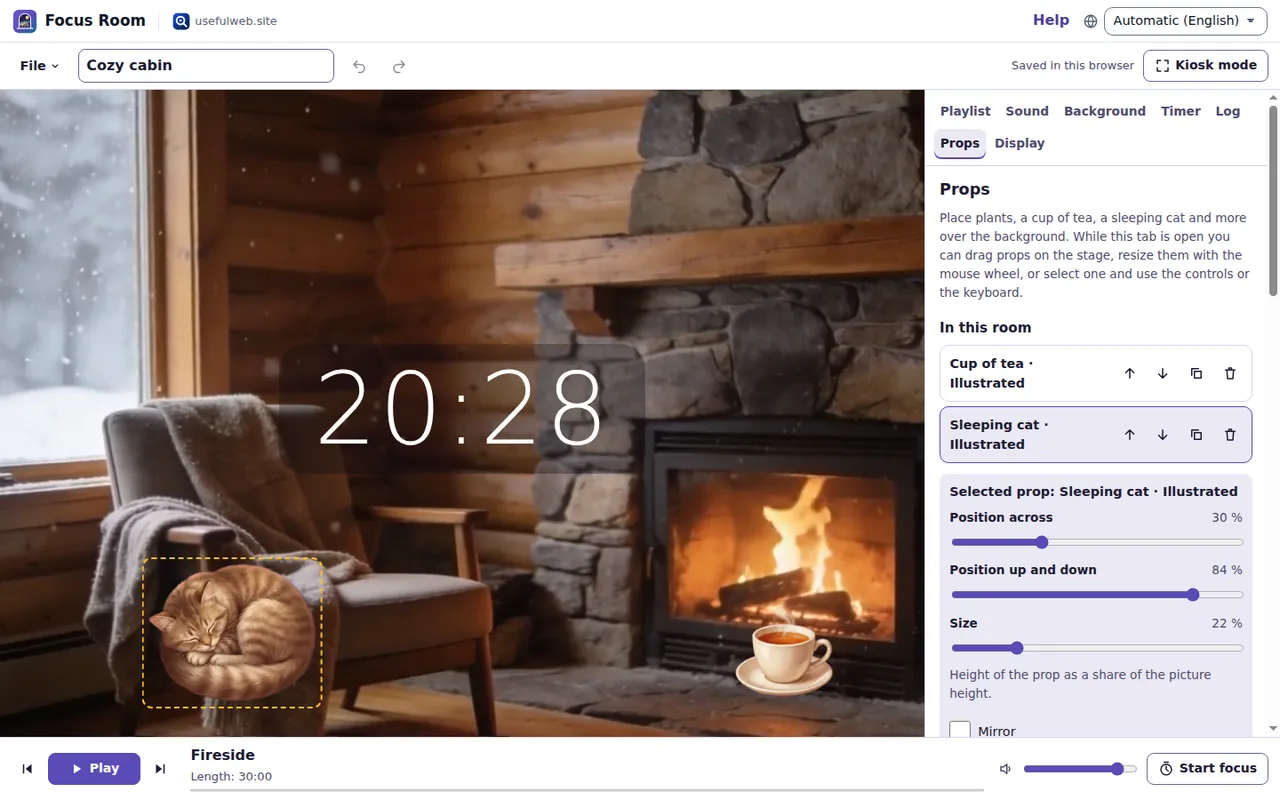
The selected prop gets controls in the panel: Position across, Position up and down, Size and Mirror, plus Bring to front and Send to back. The list In this room shows every prop, front first, with buttons to move it forward or backward, duplicate it or remove it. Remove all props clears the stage after asking; Undo brings everything back.
With the keyboard
Press Move on the stage with the keyboard, or tab to a prop on the stage, then:
- arrow keys move it a little, with Shift in bigger steps,
- + and − make it bigger or smaller,
- Page Up and Page Down bring it forward or send it backward, Home and End send it all the way back or to the front,
- Delete removes it.
Props can only be moved while the Props tab is open, so they never get in the way in the other tabs or in kiosk mode.
Saved with the room
The art background and the props are part of the room: they are saved in this browser, in room files and in share links. A room stores only the names of the built-in pictures and their positions, never the pictures themselves, so files and links stay small. Positions are measured on a wide 16:9 frame, which keeps a scene's composition on a phone, a laptop and a large monitor; on a narrow screen the sides of the picture are cut off, as with the background itself.
Two templates show what you can do: Cozy cabin puts a sleeping cat and a cup of tea in front of the fireplace loop, and Pixel night builds a pixel-art desk in front of a night city. Open them with File → Templates….
Ready to try it?