Tutorial 10 of 10
Share a focus room with your team
Intermediate 4 min
Save a Focus Room room to a shared workspace so a whole office or study group hears the same playlist, with roles and live updates for everyone.
A quiet-hours room for the office, a shared study playlist, the countdown screen in the team room: in a team workspace everyone opens the same room. Without signing in nothing changes — the workspace is always optional and Focus Room keeps saving in this browser.
Save a room to a workspace
- Choose File → Save to workspace…. If you are not signed in yet, sign in with a passkey (or Google) — a passkey account needs no e-mail address.
- Pick a workspace or create one, check the title and choose Save.
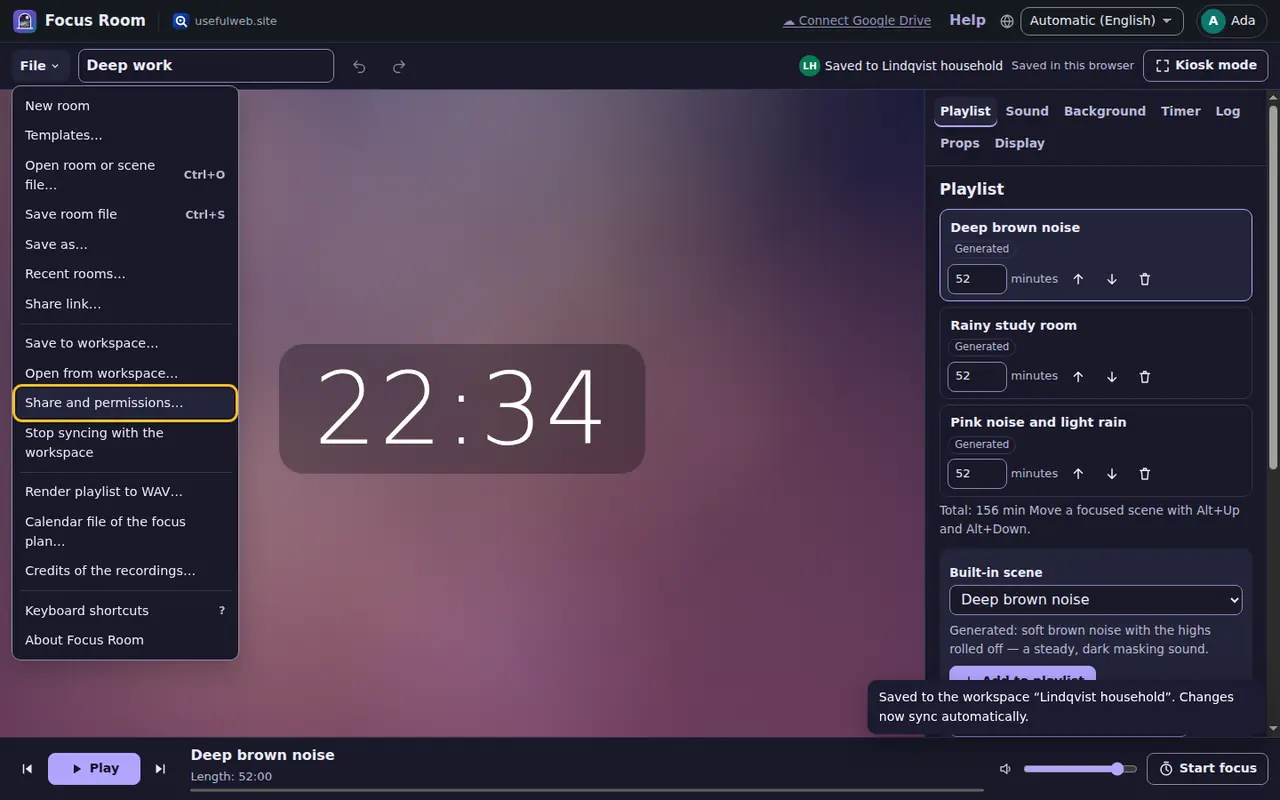
- The chip in the bar at the top now says Saved to and the workspace name. Every change to the playlist, sound, background, timer, props or display is saved to the workspace about a second later.
Invite people and choose who may edit
Choose File → Share and permissions… to see the members, create an invite link with a role and copy a direct link to this room. Owner, Admin and Member can edit, a Viewer can listen but not change the room, and a Guest sees only what a sharing rule opens for them.
Work together live
Teammates open the room with File → Open from workspace… or with the direct link (it ends in #teamdoc=…). The chip shows the initials of everyone who has it open. When someone changes the room, the new version arrives automatically — the music keeps playing, and the change is heard from the next scene on. If two people change it at the same moment, Focus Room asks: Load their version, Keep mine and overwrite theirs or Save mine as a copy.
Opening another room, a template or a link stops syncing, so the shared room is never overwritten by accident. Stop syncing with the workspace does the same on purpose; your copy stays saved in this browser.
Read only for viewers
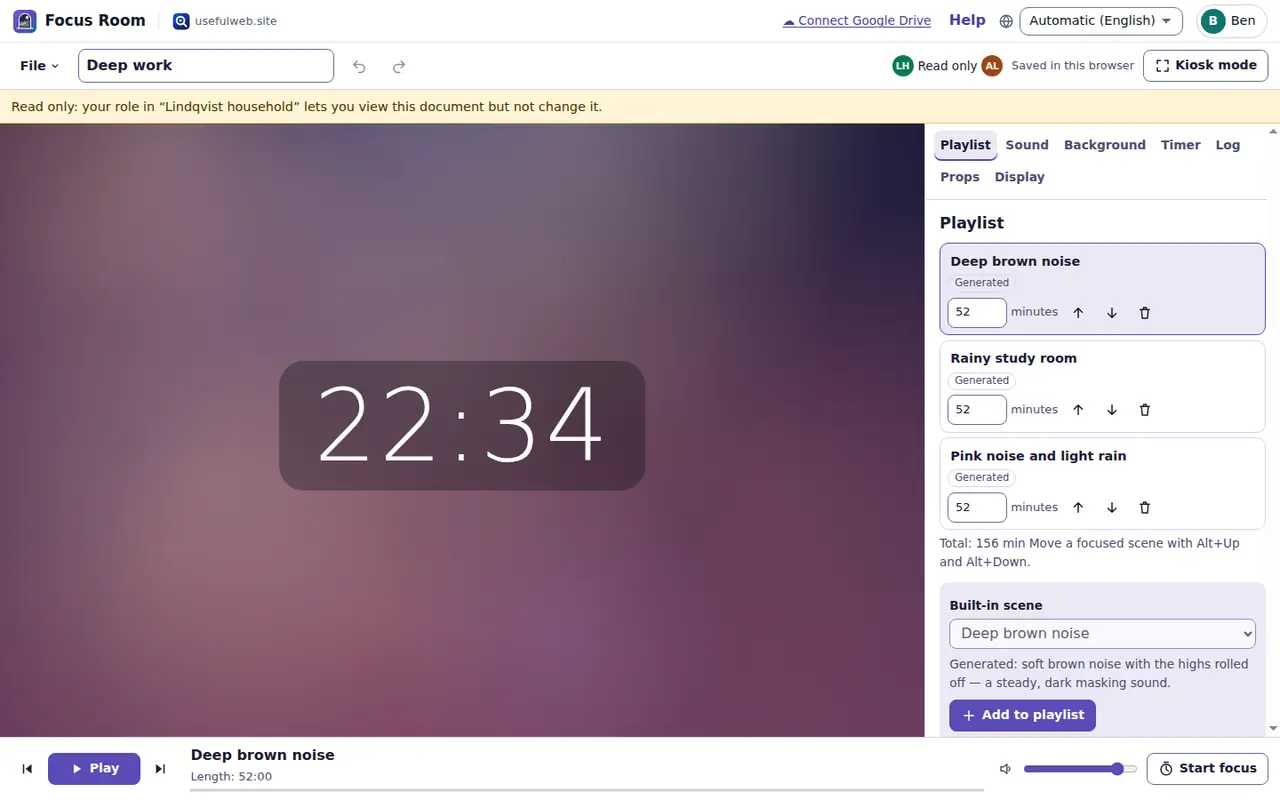
Viewers see a yellow note: Read only: your role in “…” lets you view this document but not change it. They can play, pause, skip, use kiosk mode and the focus timer, show the display full screen and set their own volume. Playlist, sound, background, timer and display settings and props are locked, and every editing action explains why instead of changing the room.
What is not shared
Media is not shared: generated sounds are made by each browser, recordings stream from Wikimedia Commons as before, and only the room settings go to the workspace. Your session log is never shared.
Ready to try it?